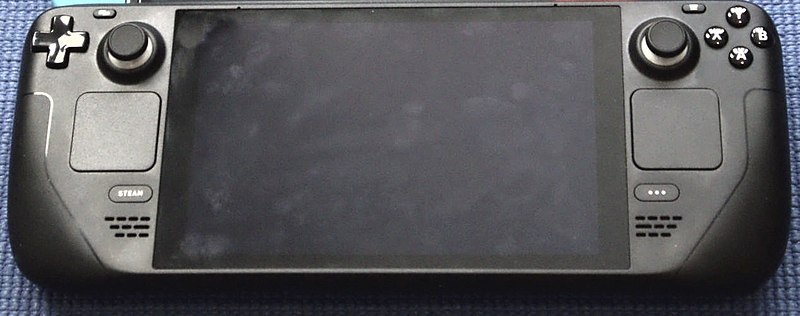
What types of SD cards are the best for your Steam Deck

*All Amazon Links Help Support my Blog!*

As small as a fingernail: close-up of Micro SD card SanDisk Ultra 64 GB on white background

So you want a Good Gaming Experience

If you are like me, you only bought a small 64gb version of the Steam Deck. After all You can upgrade the internal storage up to 2tb if you really had the money for the hardware. I know I will be doing this in the future myself but until then. I still have a lot of steam games and other games I want to play on the Steam deck. This is another way to increase your storage and you can save a lot of money this way also, if you aren’t confortable about opening up your Steam Deck. No screws required to do this way also.  This is the easiest way to increase your storage space but you have to have the right cards to have the best gaming experience.   I’m going to talk about some of the things you will want to look for and also give you some examples of the cards you should buy.

Read and Write Speeds

This is the first place you should be looking for.  The SDXC (MicroSD card) has to be able to write  and read up to 100 mb/s.  The faster you get the better experience you will be.  You should look for cards that says V30 and has the U3 Symbol.   These will tell you that they are designed for up to that amount but I find that you will want to get something that is as fast as possible but also really cheap.  You can buy several of these and switch them out with the games you are wanting to play at the time.  You can buy several small 256gb MicroSD cards and switch them off when you need because of games being on them that you want to play.   Here’s a Few of my Amazon recommendations on which ones to buy that will get you the most out of gaming experience.

Final Thoughts

My final thoughts on this is that you can have anywhere from 64gb up to 1 tb of extra space and if you have a 1tb internal space.  I can’t see you needing more that a 2 tb amount either way.  This would probably the most you probably, unless you add in the Epic Games and other ways to mod your Steam Deck.  I’ll be talking about that in an upcoming post about how you can do that for almost any gaming network but maybe not Nintendo.   The Steam Deck is more powerful than the Switch right now.  You can play games from other providers and enjoy playing mobile.   This is something that has been a long time coming to allow gamers to take their games anywhere they want to and play them on any display they want to.   I don’t know how the Logitech G Gaming handset will be but at least the Steam Deck is far better than what people have thought it would be.  I can’t wait to see the Version 2 of the Steam Deck and see what they do in the future.

So you want to upgrade your SSD on the Steam Deck, huh?

The Prices of Steam Deck

Upgrading is Possible

I’m not going to say it won’t be easy to do. It just depends on how much of knowledge you have to do this. I bought the 64gb Model because well it was the cheaper of the 3. I figured it would be cheaper to do it myself than to pay them to do it. I am looking now and think I did a great job with this because I didn’t have to spend the 600 dollars for the 512gb model. In fact there are more bigger kinds of the SSD that I can install that will go beyond the 512gb that they are selling. If you want to do this, I really suggest checking out the Steam Deck Teardown that the IFIXIT guys did. I simply love the idea of tearing it down and being able to MOD it, if I so choice.  I’m going to talk about the best choices you have to upgrade your storage in the Steam Deck.   These are just my recommendations on which ones will help you and save you money in the process.

Buy NVME 2230 30 mm SSDs

So we start to talk about the kind of SSD’s you will need to buy in order to upgrade your Steam Deck.   You will need to find SSDs that are one sided NVME.  They can not have chips on both sides of the card, there would be no room for it.   You’re going to look for the type you might want but here are some good options that I see on Amazon.

*Clicking on my Amazon links helps support my blog*

SkHynix 256GB PCIe NVMe 2230 SSD for 31$

Here’s the first one that I recommend for anyone who might just want to upgrade to a little bit bigger size. This however will not give you as much room as you might want but it will give you enough room to start off with and then you can SD cards to do the rest.  As you can see this one will be a good deal for you right now.   You can quickly and easily upgrade your Steam Deck to a bigger storage.   It however isn’t the only one I would recommend.

Micron SSD 512GB M.2 2230 30mm NVMe PCIe 4.0 for 99$

Now here’s a great deal going from jusst paying 399$ pluss tax to 499$ Plus tax.  Saving you over 130$, if you just did it yourself.   So this one should fit Steam Deck and I don’t see any problems with it.  It is small enough and fast enough to use with the Steam Deck.  You won’t see it slowing you down as you are gaming on the Steam Deck.

SN530 m.2 2230 SSD 1TB NVMe PCIe For 184$

This seems to be the best deal around because you can get almost a 1 tb for the best amount of money.   The only problem with this one is you really only get 866gb of space and the rest is taken up by design of the chip.   I don’t know if you want that or not but at least this one is available to you to buy.  You might be able to find other 1tb that will get closer to the 1tb limit but not  many and they start to get more expensive.

2TB M.2 2230 NVMe PCIe SSD Gen 4.0 for 539$

Finally we get to this bad boy, it is a bit expensive for my tastes but at least this is a Samsungs SSD.  So it will be blazing fast but I don’t know if I would pay 500$ for a 2tb when you can easy get Micro SD’s for cheaper.  I guess those who can afford to pay it will most likely.  I am sure there will be other manufacturers who will come out with 2tb but for right now this one is the only one on Amazon and claims to be able to upgrade the Steam Deck.  I suspect your will only get like 1.7tb of space off this SSD but it will be massive.  If you have a lot of games, this would definately let you put them on the Steam Deck.

Installing the Steam OS

So you bought a bigger SSd and went to install it but you will need to install the Steam OS.  You can follower the instructions on how to create a Steam OS recovery USB drive.   I personally might go with my own and use CloneZilla and clone the hard drive and move it to the new one after you install the new SSD.   Then grab something like Gparted and expand the disk to the size you need that would be my recommendations so you don’t loose any of you games or have to reinstall the games that you have already installed.   You will need a USB stick that has the size you want to clone so if you have a 64gb then you will need one that is at least that big.  You can use a dock or something like that, See my previous post about Docks.  to use multiple USB sticks.  Hope this helps.  Did you find this informative, why not share it and let others know that it is possible to upgrade your Steam Deck.

How to move your Minecraft World from PC to SteamOS (Archlinux)

Installing Minecraft

See Link here for more information

After you get done install Minecraft on your Steam deck you will then be able to log into your Minecraft Java Edition. I suggest setting updifferent version for the game if you have several different versions for example 1.16.2 and 18.1 and Maybe even 1.19.0+. I’ve found this to be the very easy to use and keep your from having to log into to your minecraft java edition. Once you have Micraft installed and ready to played. You really should go ahead create test world so you can verify that it is working properly. Once done you’ll want to process to the next step.

Zipping your saved worlds

This next step is important because you never know what could happen. You’ll want to hit “Win + R” and type in “%appdata%\.minecraft” while you are logged into your Windows device. This should bring your to C:\users\[loginID]\Appdata\.minecraft. Once there you will want to navigate to saves directory. You’ll find in most times it is there unless you have designated another location in the Minecraft Java launcher where to go. I’m going to assume you know where your save directory and we’ll talk about what you will need to do next.  I’d use something like 7zip or even Windows Zipping utility.  For the People who are absolutely beginners with this.   I recommend copying these to a USB and then copying them to the Steam Deck that way or you could use the microSD card if you have have a MicroSD card reader to move the zip files over.   Once you have zip the worlds you want to play on you Steam Deck.   You basically just want to zip the whole directory of the world name for example if you have a Test World on your Windows computer, it will probably be something like “Test World” folder.  Zip the whole directory up and copy it over.   Don’t change anything when it get’s zipped up.

If you have multiple worlds and have them set up with different version.   I’d suggest zipping them up and creating folders with the different version onto the USB or MicroSD card.  So when you create and import them into PolyMC you will know which versions you will need to create in Java PolyMC.

Importing world into PolyMC

Once you have them zip files copied over or at least installed on the MicroSD card and inserted into the the Steam Deck.    You are going to want to start PolyMC in Desktop mode if you are using this on the Steam Deck.   One you run it you’ll want to view the worlds:

View Worlds _ PolyMC

Then once you do that, The next screen you will want to click Add (saved world).

Add worlds as Zip files

Once you hit Add you will then want to go to the directory on the MicroSD card or USB drive or Where ever you moved the zip files. Once you find it and click OPEN. It should start to add it to the PolyMC World. If you created the right version you will not have to worry about it when you start the game. After Adding all the worlds you want to play with, you can then get out of Steam Deck Desktop mode and go back to the the Steam OS and play your game that you were playing on your PC. I haven’t tried moving these back to the PC or keeping them syncorized but at least you can play your favorite worlds on Steam Deck.

Like this little quick tutorial. Why not share it and tell people so more people can play Minecraft and or use your worlds you were using it on the PC. This will only work for the JAVA version of Minecraft. Bedrock will probably not work, I haven’t tried or thought about trying it for Steam Deck. Hope this helps. Have a Good Monday Morning.

Is Working harder really the best approach to keeping your Job?

light, night, number, sign, color, blue, signage, lighting, neon, neon sign, work harder, brand, font, logo, text, shape, computer wallpaper, Free Images In PxHere

Why do some employees work harder?

This is going to be a little bit of a rant for me because of what is happening at work. Understanding the concept of working harder isn’t beyond me. I actually do that when the time calls for it but I have to wonder what goes through people’s head.   I’ll give a little bit of an explanation of what I mean,  We have a new employee, and I was trying to show him how to do something smarter.   He comes back saying, “He’s going to do it the right way!”.   I’ve really thought about this all day long and wondered what is the right way to do our jobs.   Are the higher up security people really watching us that closely to worry about doing it the right way?   I work for a really security focused place but I also know that there is NO way they can be watching us that closely.   Let us not forget we are the IT support so we may have to come up with unique ways to solve problems.

Understanding Business Justification

Some people think they have to work harder because they don’t understand this concept.   What is Business Justification, according to Wikipedia:

A business case (business justification) captures the reasoning for initiating a project or task. It is often presented in a well-structured written document, but may also come in the form of a short verbal agreement or presentation. The logic of the business case is that, whenever resources such as money or effort are consumed, they should be in support of a specific business need.

This isn’t difficult concept, I beleive, it just tries to get people to think about how much money the business may or may not loose if we do it this way or that way.  So why do employees think there is the right way and other ways are wrong?  If the business justification makes it harder for us to work then they aren’t saving as much money as they could by allowing the IT depart to do things a little differently.

They give us tools to use

The tools we are allowed to use are already present and we should be able to use tools, such as programs or Windows access that not everyone has.   Why give us these tools if we aren’t allowed to use them?  That is the really question in my mind right now.   I think the most problems we are having is people are just afraid to use the tools that we have access to because of the idea that big brother is watching us.   I can’t see that happening even in a good day at our place.   If you are doing your job they could care less how we do it.   That’s the real issue I think because most of the time you never really know who got hired until it is too late.   No matter the amount of background checks, or stuff like that we’ll always going to have someone get through those checks that shouldn’t be there in the first place.  Yes I can see that may be why we do some things this way but if you really are doing your job then you shouldn’t need to worry about big brother.

Work Smarter, Not Harder

This has been my motto since I started working,  I am sure there are other blogs out there that even talk about working smarter and not harder! So Why working smarter is better for you than working harder.  The easy answer is that if you really think about your job and how to make your just easier than you have just started working smarter.   However if you do things to keep the same output than you aren’t working smarter but working harder to seem like you are more busy than you really are.   Office people are notorious for this because it keeps the boss of their backs.   I’ve seen some of this at my current work but I don’t think it as bad as other places.   I’ve heard about the toxic places that do worse than where I work at.    I guess this rant is about over with but I just want people to consider that working harder does not help you but hinder you and make you more tired at night when you go home.   Think about how you can make your work life better and you will find that you are much happier than you were few weeks ago.

Have you had this type of issue before with employees or do you work harder?  let’s start a discussion and hear how you have handled it in the past.


How to install Steam Games faster than ever on the Steam Deck!


The Steam Deck Rocks

I first got this today but I have so many games on Steam, You’d think it would take very long.   The problem is that you probably don’t know this little tip to help you get your steam games onto the steam deck quicker.   I am going to talk about a few ways you could increase your download speed on the Steam Deck.   This won’t be a hard lesson for some but it will be an eye opening lesson for others.    The real question is how I did it and how can you make downloading your games much faster and easier.   The simple truth is I used a USB-C Dongle From Amazon to do that.   Most of the time downloading from WIFI can be fast but it can also be slow due to the limits of bandwidth on the WIFI network.  You can download way faster on wired than you can on wireless.   That will always be the case.

Disconnect from WIFI

This is something else I found out is that if you didn’t disconnect from the WIFI in the steam settings it would still be slow to download while connected to the dongle.   After disconnecting from the WIFI my speed downloads jumped up and I could get those really big games installed in half the time.  This is one of those little tips no one told you about with the Steam Deck.  To disconnect from WIFI when you are using a USB-C Dongle or a USB-C DOCK. A USB-C Dock is just a bigger and bulker version of the dongle because you can plug in keyboards and mice into and use it like a computer. This is definitely something I will be trying later on. I am quite curious to see if I can plug in a joystick or use a Bluetooth joystick to play games from my television set in the living room.

Streaming Games

If you plan on streaming games to another part of the house with your Steam Deck, you’ll want to also plug it in and make sure that you have enough bandwidth to stream games from your computer to the Steam Deck.   I think this one will also apply for the Logitech G Cloud Gaming Handheld also, if you plan to stream with the Logitech gaming handheld it will work a lot better if you can get a hard connection with that like you can with the Steam Deck.  

Download speeds

The only draw back I can see right now is the download speeds are limited to how fast the NVME or the SD card you are using can be written to.  So that may be a draw back from some people who got the slow SD cards that are barely able to keep up.   The best kind I can suggest are the SD cards that are designed for quick read and writes the ones that are in the 160MB/s are probably you best bet but you can use the 100MB/s read and write speeds if you like.  It will still be fast enough to play games on and will make your gaming experience better no matter which one you uses.

These are just a few things I’ve noticed once I got my Steam deck.   I will talk more about it in the coming weeks but I thought this would help other install their games or stream their games faster.   What else do you want to know about the Steam Deck, why not comment below and let me know what you interested in knowing or finding out?